Showing posts with label Windows. Show all posts

Monday, November 28, 2011

Microsoft Launches MEA Windows Phone 7 Challenge

Dear Visitors Today i share this post and discuss about some  Latest Information Technologies like Microsoft Gulf today announced the start of an exciting competition with the official launch of the MEA (Middle East & Africa) Windows Phone 7 Challenge in the region. Held in the region for the first time, the MEA Windows Phone 7 Challenge is a student technology contest which has been conceived to attract entries from students across the Middle East and Africa region to develop Windows Phone 7 compatible applications.

As part of this competition, contestants need to send innovative contest entries based on Microsoft Windows Phone technologies that address the theme: Imagine a world where technology helps solve the toughest problems. This will involve the creation of an original XAP Application package in Silverlight or XNA Game Studio. For more information and to enter the competition to win attractive prizes, contestants can visit www.meawp7challenge.com.

“With opportunities like MEA Phone 7 challenge, you can go out and test yourself, your potential and your ability. This will motivate you to do more and more. For young students, it’s a cool platform to get your momentum going” said Amir Ali Jivani, MEA Phone 7 Challenge Round 1 Winner.

The Contest is split into five Rounds with the fifth round being the final round to select the eventual winner. The last date for contest entries is on April 20th 2011. A panel of qualified judges with knowledge and experience in software development will review all eligible entries received and select the winning teams based upon criteria revolving around originality and innovation, Visual XAP Appeal, Consumer XAP Appeal and unique mobile-oriented features.

According to Amintas Neto, MEA Academic Relations Lead., “ The MEA Windows Phone 7 challenge is a wonderful opportunity for talented students from across the region who can use this competition as a showcase for their creativity and innovation to develop the best applications on Windows Phone 7. The competition comes at an opportune time considering the high mobile penetration across the region which has been driven to a large extent by the youth who are eager users and want the latest applications. The aim of this competition is to tap into that talent pool and technical capabilities to create truly innovative and socially responsible applications on Windows Phone 7.”

He added, “For Microsoft, this is another opportunity for us to highlight our commitment to supporting student talent in technology development to create advanced IT skills across the region.”

“We wanted to create something that would have a unique impression on the user, solve their problems easily and also be fun to use,” said Asad Ali Memon, MEA Phone 7 Challenge Round 2 Winner

Since its global rollout, Windows Phone 7 has attracted rave reviews from consumers around the world and in the region. For Microsoft, Windows Phone 7 represents an ambitious effort to deliver a fundamentally different kind of phone – one designed for an increasingly sophisticated and demanding consumer that is as engaged with their personal life as they are with work.

Tuesday, September 20, 2011

Some of the really cool daily usable shortcuts for windows7


Win + L Quickly locks your computer, very useful.
Win + D Displays your desktop by minimizing all your open windows .
Win + R opens up the Run window so you can launch and application or paste a URL.
Win + T shows the first Item on your task list you can then navigate through them by using the arrow keys.
Win + U opens up the Ease of access window, here are some useful tools such as magnifier, but you can easily zoom in by pressing Win + ‘+’ and zoom out by pressing Win + ‘-‘ this is very useful specially when you are doing a presentation, which I do a lot of.
Win + P is also very useful for presentations. it gives you the projector shortcut keys
Win + S is really cool, if you are familiar with Snag it, well it does basically the same thing allows you to grab a portion of your screen then pastes it in One Note.
Win + E Opens the explorer window.
Win + F opens of the search window.
Win + X launches the Mobility window from there you can control the volume, check battery status, Wireless setting, projector settings and Sync settings
Win + N launches OneNote
Now some really cool shortcuts, some times I want to dock one of my apps to the right and another one to the left all you have to do is press Win + right or left arrow Key, this is really cool when you use multiple monitors.
Win + Up arrow will maximizes current window, Win + Down arrow will restore the current window if it is maximized, hit it again and will minimizes the active window.
you can maximize, restore or dock the active window simply by dragging it to the top or sides, or just grab any window by its title bar shake it a bit and it automatically will minimize all the other windows.

Thursday, September 15, 2011

Download Differently Designed Windows 8


Windows 8, that we knew would be different, is going to be available soon for your tablets, desktops and for selected smartphones.
Yes Windows 8 comes with a hybrid design and isn’t like the Windows OS we are usually familiar with. Latest version brings completely new visual interface, which is optimized for touchscreen devices but can be equally efficient with mouse and keyboard for desktop computers.
Here’s a preview of What Windows 8 will look like:
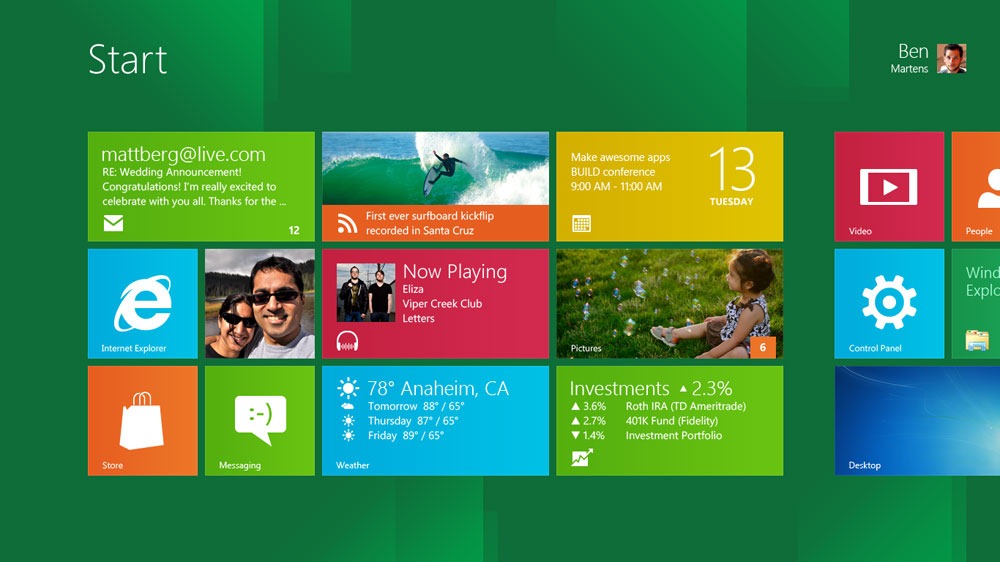
Start Screen:
screenshot startScreen web thumb Download Differently Designed Windows 8
Lock Screen:
screenshot lockScreen web thumb Download Differently Designed Windows 8
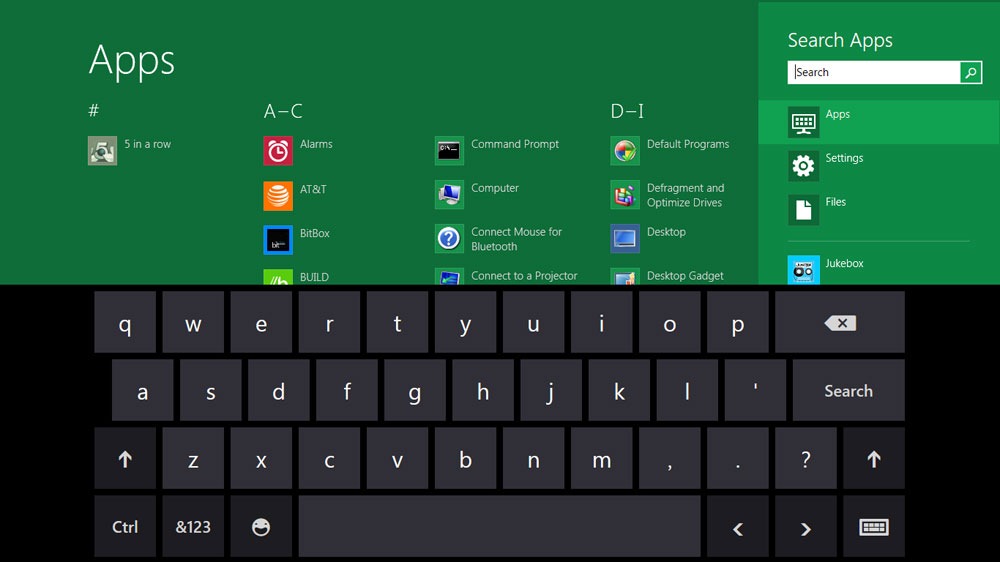
Keyboard and Apps (Earlier we used to call them programs):
screenshot keyboard web thumb Download Differently Designed Windows 8
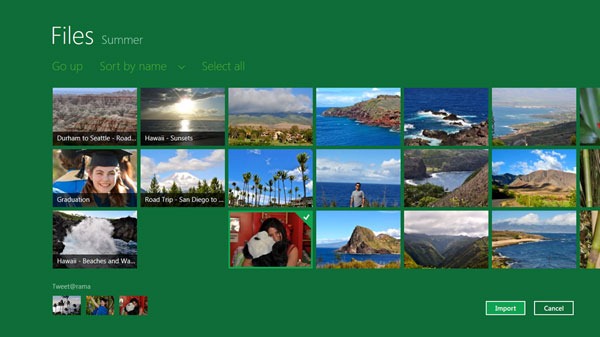
File Management:
screenshot photoPicker page thumb Download Differently Designed Windows 8

Download Windows 8

Microsoft was quick enough to release the developer version for Windows 8 for general public.
You can select from one of following versions available at Microsoft’s website:
  • Windows Developer Preview with developer tools English, 64-bit
  • Windows Developer Preview English, 64-bit
  • Windows Developer Preview English, 32-bit
It appears that Windows Developer Preview English, 32-bit will be suitable for many, unless you need to get the developer tools too.
You can download any version of Windows 8 from this link.

How to Install Windows 8 on Virtual Machines:

  • You can install Windows 8 preview on a virtual machine instead of dedicating an entire PC for it.
  • You can use VirtualBox for hardware virtualization
  • Download Windows 8 from above given link.
  • Create a new VirtualBox virtual machine and select Windows 8 as the OS type.
  • In the Motherboard tab under System, check Enable IO APIC.
  • In the Processor tab under System, check Enable PAE/NX.
  • In the Acceleration tab under System, check Enable VT-x/AMD-V and Enable Nested Paging.
  • In the Video tab under Display, check Enable 2D acceleration.
  • Remember to mount the Windows 8 .ISO file you downloaded and you’re good to go!
Note: Make sure your PC supports hardware virtualization for this to work, or you can go with a fresh machine to install Windows 8. Remember, you can’t un-install this copy of Windows unless you format the drive.
Want to Change Metro UI:
  • If you want to disable the Metro UI?
  • Go to: HKEY_CURRENT_USER\Software\Microsoft\Windows\CurrentVersion\Explorer\
  • Change the value of RPEnabled from 1 to 0.
Thanks for iDynamic Solutions