Showing posts with label Google+. Show all posts

Wednesday, December 14, 2011

Improves Site Traffic 2 Weeks After Google’s Panda Update

Dear Visitors today in this post we talking about website traffic some of people really don't no what is Google Panda? and how Google Panda do Work? and How we improve our website traffic?  we take this article from labnol.org which is Improves Site Traffic 2 Weeks After Google’s Panda Update. The last few weeks have been a little tough for Digital Inspiration as the site got caught in the battle between Google and content farms against low-quality content. As a result, the site witnessed a massive decline in organic traffic coming from Google starting February 24th, the day when the Farmer (Panda) update went live in Google US.


Which sites were affected by Google Farmer /Panda update?

Since the immediate reaction was that the site may have been incorrectly penalized, I did a reconsideration request with Google. Over time, it became clear that a reconsideration request may not work in this case as it was not a site-specific penalty but an algorithmic change affecting a large number of sites. Google must have included new signals in their search algorithms to determine ‘low-quality’ content and those may have triggered the drop.

Web search forums and search blogs (see the SEO category under recommended websites) have since been abuzz with advice on what webmasters may do to pull their sites out of the Panda change. There’s a general consensus that even if majority of your site has original and useful content, pages that are not so useful may impact the trust level of the entire site.

I have therefore made a few changes to my site this month. These include:

#1. I have added a NOINDEX, FOLLOW meta tag to all the tags and category pages except the first ones. For instance, the first page of the Google Docs tag doesn’t have the NOINDEX meta tag but you can find it on the second page of that same tag.

#2. When I moved to Blogger to WordPress some four years ago, I was not very clear of the ‘tagging’ concept and created several useless tags in the process. I have deleted all these tags now and the clean-up continues. Tags add new pages to your blog that aren’t any useful to the reader.

#3. I have used the excellent Xenu tool to discover and fix of all the broken links as well as the 404 pages on this site. If there were 404 links that I cannot fix, like if an external site is linking to a page that doesn’t exist, I used redirection if possible.

#4. I have also made certain changes to my robots.txt file to prevent Google from indexing content like WordPress files, themes and other machine-generated stuff that’s part of the blogging platform.

#5. My Google Webmaster Tools dashboard had certain HTML Suggestions for pages with short meta descriptions or duplicate title tags. I have fixed them as well.

What I didn’t do? Some sites suggested that having too many ads above the fold may be a factor in Panda but after discussing this with the right people, I decided against altering the layout of ad units for now.

Also, I am not too worried of site scrapers since all posts in my RSS Feed links back to the original post and thus Google should have little trouble determining the original source.


Traffic Improvement after Google Panda Update
I am not sure if any of the above changes have helped, or if Google has pushed new updates to the Panda algorithm, but I do see an improvement in traffic coming from Google (US).

The organic traffic plummeted after February 24th but it again picked up after March 10th. See this detailed Google Analytics chart for the exact traffic pattern. This has been consistent for almost a week now.

As you may have noticed, there isn’t much that I have done those small changes mentioned above might have helped. If you think your website has high-quality and original content but is still affected by the Farmer /Panda update, the best option is that you go back to the drawing board, look at your site structure carefully and do some clean-up. As Google's Wysz remarked:

If you believe you've been impacted by this change you should evaluate all the content on your site and do your best to improve the overall quality of the pages on your domain. Removing low quality pages or moving them to a different domain could help your rankings for the higher quality content.

I also recommend these well-researched posts from Vanessa Fox, Rand Fishkin, Danny Sullivan and Barry Schwartz for advice on what you do to regain your lost Google Search rankings because of the Panda change.

Should you have any questions or comments, please share in this Facebook thread.

Monday, November 14, 2011

How Google Plus Bookmark Manage


Dear Visitors Today in This Post we discuss about Google Pluse Bookmark Program The Google +1 button is widely seen as Google’s answer to the popular Like button of Facebook as they have similar goals – both let you easily recommend web pages, that you liked or enjoyed reading, to your social circles and the outside world.
There’s however another reason why web publishers are more likely to embrace Google’s +1 button – it can bring in more search traffic. How? In simple English, if enough people +1 a page on your site, Google could see that as a positive signal and that may help improve your site’s ranking in organic search results.
Google’s OPG sent me this 1-sheet overview that explains the +1 button in greater detail.

Google +1 Bookmarklet

Most websites and blog have added the Google +1 button to their web pages but if you come across a page that would like to recommend on Google Plus but can’t find that +1 button, you may use the following bookmarklet – just drag this to the bookmarks toolbar (see video) and you will be able to easily +1 any web page on the Internet.

Share on Google Plus Bookmark

The Google +1 bookmark would only help you +1 pages that would then show up in your Google Plus profile. However, if you would like to share a web page, video, picture or something else on Google Plus, you need to install the Share on Google+ bookmark.
The Share on Google+ bookmarklet will open a little overlay window and you can share the current page with your Google Plus circles without leaving the existing page. It even takes care of the page thumbnails, titles and excerpts. The code is available on github.
And since these are bookmarklets, they should across all desktop and mobile browsers including those of iPhone and iPads.

How to Use the Google+ Bookmark Manager


Saturday, November 12, 2011

Brand New Google Android 2.2 froyo 7" Touch Tablet PC With Camera WIFI Netbook 3G (FLASH)


Brand New Google Android 2.2 froyo 7" Touch Tablet PC With Camera WIFI Netbook 3G (FLASH)


Wholesale Very Cheap Brand New Box Packed TABLET PC with Accessories
Google Android 7 inch MID Tablet PC With CAMERA WIFI Netbook (Touch Screen) with FLASH 10.1
Handy and Mobile Solution for Internet Lovers at Affordable Price....
Item Description
1.VIA ARM 9 Platform VT8650  800MHz.
2. Operating System: Android 2.2 (froyo)
3. webcam:1.3 MP
4. Support Flash 10.1 (Watch Youtube Videos)
5. WiFi 802.11 b/g,
6. 256 MB DDR II RAM
7. 2GB Flash HDD standard; (optional up to 32GB)
8. 7inch Touch screen LCD, 800 * 480PX Resolution
9. Ebook reader, microSD slot
10. G-sensor, Loud Speaker, Google Browser
11. Color: Black / Silver
12: Document to Go (Word, Excel, PDF, Power Point etc.) 
13. Build number: WMT2.1.2
14. LAN/WIFI 10/100M Ethernet Access AND 802.11b/g
15. Camera 1.3 mega pixel Web CAM
16. Keyboard soft keyboard
17. Touch Operation Full-size touch operation, sliding menus, icons
18. USB Port  2 x USB port (via the external usb pot)
19. Card Port SD CARD(512MB-8GB)
20. Sound Effect  Build-in stereo speaker, microphone
21. Jacks MIC in & Headphone out
22. Battery 2400mAH Li-ion
23. Working time 3 hours (standby time 7 hours)
24. Software: Fring, QQ, MSN, You tube, Google Map, Document to go (Word, Excel, PDF, PowerPoint etc.) ,Multimedia Player, Email, ES File Explore, Application Store, Facebook etc.
Package Size: 21cm x 12cm x 2cm (8.27in x 4.72in x 0.79in)
Package Include:
 1 x 7"ePad Tablet pc
1 x Standard Charger
1 x RJ45 adapter
1 x English User Manual
1x Stylus (Free with order as gift)
1x Earphone (Free with order as gift)                                                                
Add-Ons (Optional):
USB 2.0 KeyBoard with Leather Case  (Add Cost = 1499)
Support 3G Module:
Huawei E220:WCDMA/HSPDA
Huawei E230:CDM
Huawei E770:WCDMA/HSPDA
Huawei K3565:WCDMA/HSPDA

Contact for Bulk Quantity.
Payment 100 % Advance.
Delivery time : 6 - 8 working 
days (for order of 100 pcs. & above).

Price for 01 - 10 units order = 14,499/=PKR
Price for 10 units plus order = 13,999/=PKR

Minimum Order =  1 units
Maximum Order = 5000 units
Single unit orders are also welcome, subject to availability of loose piece out of carton.
Product Advertisement by Internet Media Inspiration

Wednesday, November 9, 2011

How to Share your Printer Word Wide [Video Tutorial]

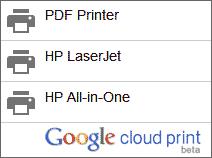
Dear Visitor Today in This Post we Tech you how to use Google Cloud Print, mean How to Share your Printer one computer to another computer thru internet, If you have a printer attached to your computer, you can turn on the printer sharing option and anyone on the home network would then be able to send print jobs to that local printer. All you need to ensure is that your (host) computer is always turned on and also connected to the local network.

Now imagine a slightly different scenario where your local printer is connected to the computer as before but here you want to share that printer with people outside your home network. For instance, your friends could be in a different city and they would still be able to send print jobs to your printer over the Internet.

One option is that you upgrade to an ePrint printer that supports printing via email but you can also do this for your existing printing that is not Internet enabled?

The answer is very much yes! Google, as you know, offers a web based printing technology called Cloud Print that lets you access your existing printer from any browser or mobile phone over the Internet. The same service can now be used to share your printer with anyone else on the web without them being part of your home network.


Step by Step - Sharing your Printer on the Internet
Assuming that the printer to connected to your Windows or Mac computer, here’s how you may share it friends and family anywhere:

A: Connect your printer to Cloud Print
Step 1. Open Google Chrome, choose Tools –> Options (or Preferences) –> Under the Hood and sign-in to Google Cloud Print.

Step 2. Choose “Finish printer registration” and all printers attached to your computer can then be accessed over the Internet through Google Cloud Print.

B: Share your printer with friends
Step 3. Click “Manage your Printers”, select the Printers option and then highlight the Printer name that you would like to share with the outside world.

Step 4. Click the Share button, type the email addresses of your friends and Share. It is as easy as sharing a Google Docs document with someone in read-only mode.

C: How others can send print jobs?
Step 5: Your friend, with whom you have shared the print, should log on to google.com/cloudprint using their Google Account and accept the “shared printer.”

Step 6. Next they hit the big “Print” button on the Cloud Print website, upload a file and print using the shared printer. That’s it.

Once they print a file, you should see a new print job on your computer in the next ten seconds or so. Your friend can send files for printing from the mobile phone as well.

This method doesn’t require any complicated networking and since everything works inside the browser, it doesn’t matter whether they are sending print jobs from a Windows, Mac or Linux machine. It just works!

Thursday, October 6, 2011

Free 75$ Google AdWords Voucher Code

Google is at it again giving out a free $75 credit for adwords/adsense. Get a free credit added to your new account by signing up with the link below.Use AdWords to advertise on Google and our network of partners. If you’re ready now fill out the form to get your $75 free voucher.
Free 75$ Google AdWords Voucher Code

•Local targeting. You can advertise in your town, country, region, or to the entire world.
•Pay for results. You only pay when someone clicks on your ad and comes to your site.
•Full control. You set your daily budget and can change, pause or resume your ads anytime.

Get $75 in free Google AdWords advertising
For your credit voucher : http://services.google.com/fb/forms/yourbusiness/
I believe this is valid in the US and Canada only. You should see this page (screen-shot) when you go there. If its not working for you please leave a comment & note your country.
You can setup multiple accounts for each campaign that you are running, so feel free to setup a few accounts to take advantage of the $75 credit which will automatically be attached to your new adwords account if you follow the link above.

This action applies only to new Google AdWords customers with a billing address in the United States or Canada. Only one promotional code per customer. By submitting your email address, you only give Google permission to use it for purposes related to the transmission of a Google AdWords promotional coupon. If you submit your phone number, Google may call you to consult you concerning advertising with Google and help you with campaign setup. Also if you do not redeem your coupon, Google may send you one email reminder to make sure you benefit from the offer. The full T&Cs related to the promotional coupon will be included in the coupon fulfillment email.

Wednesday, October 5, 2011

Google Maps Introduces Helicopter View


Dear Visitor's as you know Google Maps, Get Direction Program, actually they help us to find better way  or  short way to go destination. Before as you know Google Map show result as a Bird-eye and street view, Helicopter view is what Google has next in line for it’s Map enthusiasts. With an option to view Helicopter View, Google Maps users will now be able to have a areal view in 3D for their desired directions in Google Maps.
Google Maps Introduces Helicopter View
This 3D areal view or Helicopter view is enabled for everyone for all locations on Google Maps.
All you need is to enter start and end point in Google Maps, just like before, to get a 3D play button in left bar. Simply click on it to change your view from 2D to 3D view. You can pause and replay this 3D easily by tapping the same button.
blog2 thumb Google Maps Introduces Helicopter View
This feature is likely to further help those planning their tours into locations they are not familiar with.
Google Latitude blogs explains this as following:
Let’s say you’re planning a road trip down the beautiful coast of California’s Highway 1 and want to be able to see what the route really looks like.
California’s rugged coastline is not to be missed, but the top-down view really doesn’t give you a good sense of what this majestic terrain is like. Using the 3D preview; however, you can get aerial view of the route, as if you were in a helicopter flying above the road. 

Monday, September 26, 2011

Google's 13th Birthday Doodle Celebrate


Happy Birthday Google's. Google is celebrating its 13 years of success!
We all know that Google is the most famous and the best search engine above all other search engines. It also has a lots of apps, groups, images, videos, maps, gmail and features that are very useful to us viewers and bloggers.

This year, Google was successful launched Google+ which is a lots of people's from different social media sites like (Facebook, MySpace, Twitter, Youtube)  transferred their profiles, information and trusts to Google.

Google has been through our lives for 13 years and it really helped us technically. When we have some questions in our life, questions from school, Colleges, our Professional work, answering our assignments, researching important things, reminders for the events and contests and a lots more! It has been a globally teacher, helper, our dictionary, encyclopedia, doctor, parent and a friend to us.

Today, as a celebration of their 13 years in business Google Doodle features an image of Google with a birthday cake on it. How cute is that? Google Doodle never fails us to be amazed in every illustrations that they do.

Google Webmaster Manually Penalized Methord

To Google, please continue to serve and help people. You are really our inspiration! Happy 13th Birthday Google!

Tag:
13th birthday of google, google 13 years, google 13 years old, google 13th birthday, google doodle 13th birthday, google doodle 2011, google doodle celebrates 13th birthday, Google doodle right now, google doodle september, google doodle september 27, google doodle September 27 2011, google doodle today, google doodle's 13th birthday, google's 13th birthday, Google's 13th Birthday - Doodle, happy 13th birthday google, happy birthday google

Sunday, September 18, 2011

Google Webmaster Manually Penalized Methord

Do you want became top search in Google, Google Webmaster tools help to improve Google Search Results. If your website’s position in Google for a particular search query has suddenly dropped from the first page to, say, the fifth page of Google search results, chances are that your site has been manually penalized – maybe you did something that is not in accordance with Google webmaster guidelines.
Earlier, it was almost impossible to diagnose the reason for a Google penalty and website owners could only guess whether their site was affected for violating guidelines or because of other factors beyond their control – maybe another site had better content and that could have pushed your site down in Google without you doing anything “black hat.”
Well I hope none of us would ever need to use this but in case your site gets penalized in future, you can always ask Google through a reconsideration request and they may offer you an hint for debugging in the right direction. The Search Quality Team writes on the Webmaster blog:
Now, if your site is affected by a manual spam action, we may let you know if we were able to revoke that manual action based on your reconsideration request. Or, we could tell you if your site is still in violation of our guidelines. If your site is not actually affected by any manual action, we may let you know that as well
If your site has been manually penalized in Google for violating guidelines, you need to file a reconsideration request and wait until they revoke the penalty. If the site is not ranking due to a bug in Google algorithms, or because of access issues (like your server is down), they’ll let you know that as well.
Here’s one of the older videos from Google that talks in detail about reconsideration requests – the Webmaster tools UI though may have changed in these years.

If your site has stopped showing in Google's search results, there are some steps you can take to help reintroduce it to Google. From checking the site's robots.txt file to submitting a reconsideration request, this video tells the story of one webmaster investigating his site's disappearance from Google.

Saturday, September 17, 2011

The Trillion Pageviews for Facebook


facebook stats
Google today released an updated list of the most-visited sites on the web and it should not come as any surprise that Facebook takes the top spot with 870 million uniques. YouTube and Yahoo are next with 790 M and 590 M uniques respectively.
Google, maybe for competitive reasons, doesn't share traffic data of its own site, or that of Gmail, in the Ad Planner report. Google+ is growing but the user base is still relatively small for the site to become part of this report.
A Trillion Page Views
Facebook hit a new milestone in June this year - the site touched a trillion page views from the 870 million* people who visited Facebook that month. Check this infographic to get an idea of how big a trillion – or a million million – is.
[+] Officially, Facebook has 750+ million users but the number of unique visitors who flock Facebook every month is much higher because certain section of the site – Facebook Pages and Profiles for example – are open to non-users as well.
Facebook says that people spend over 700 billion minutes per month on the site and now we also know that, on an average, one user visits 1150 pages on Facebook in a month. That’s impressive considering that YouTube, with all the entertaining and viral content, manages only 126 views per unique visitor per month.

Thursday, September 15, 2011

Google Plus RIP


Google Plus, Google’s effort to compete Facebook, has already been in the slumps due to executional flaws that Google committed during and after the launch of product. (we discussed them in our last post linked above)
Absence of business pages has definitely it’s role in the decline of Google+, but I have known users who never got the invite to join Google Plus until they gave up.
After two months of it’s launch, one can easily witness the decline in usage and the lack of interest from Google Plus users. This has been proven by a research firm called 86n, which mentions that Google+ public posts declined by 41 percent over past two months.
86n’s data indicates that the average number of public Google+ posts per day has decreased from 0.68 public posts per day between 19 July 2011 and 19 August 2011 to 0.40 public posts per day between 19 August 2011 and 14 September 2011.
googleplus thumb Google Plus: RIP
Remember that these figures are for public posts only, while Google+ offers private posts too but that are believed to be of nominal rate.
Is this the time for Google to make it’s mind to not to waste resources on social network and to focus on it’s core business? Or they will put another few months before they quit? What you say?

Monday, September 12, 2011

How to Create a Custom Facebook Page in 5 Minutes


custom facebook page
My previous guide on creating custom Facebook Pages is no longer relevant since it made use of Static FBML (Facebook Markup Language) and Facebook recently dropped support for FBML tags in favor of IFRAME based tabs.
This is actually good news for businesses and individuals who maintain Facebook Pages because you can now customize the design of your Pages without writing any code. You can create custom apps (or ‘tabs’) for your Facebook Page in any WYSIWYG editor and thus, anything that can be embedded in a HTML page can be easily added to your Facebook Pages.

Building Custom Tabs (Apps) for Facebook Pages

Before we get into the actual process of creating custom tabs for Facebook Pages, we need to decide a place where we’ll host the HTML, CSS and other associated files. If you already have a web host, you can use that to host your Facebook Pages but an even better, and simpler, option is Google Sites.
[*] The Digital Inspiration page on Facebook also uses Google Sites.
There are several reasons why you may want to use Google Sites. Google Sites are easy to maintain, offer WYSIWGY editing tools and can be integrated with Google Analytics so you more easily track visitors to your Facebook pages.
The other big reason is that Google Sites support both secure (https) and regular (http) connections. This is extremely essential because some users may have turned on “secure browsing” in their Facebook security settings. If you service your Page content from a regular (http) connection, all they’ll see is a “turn off secure browsing” warning messages.
You can easily avoid this issue with the help of Google Sites.
secure facebook https

How to Create a Facebook App for your Page

Enough of theory, let’s now get our hands dirty and build a custom tab app for our Facebook Page.
Step 1: Open Google Sites and create a new site. Choose “Blank Slate” for the theme and set the width as 500px (the Facebook Pages canvas can be 520px wide). [#]
Step 2: Create a new page in Google Sites and add some content to this page using either the built-in WYSIWYG editor or switch to the HTML view for any custom code. You may insert images, maps, videos, and everything else just like a regular HTML page. [#]
Step 3: Switch to Facebook and search for the “Developer” app. Add this to your Facebook Profile and then click on the button that says “Create a new App”. Give your app a name and also add an icon since it will show up in your Facebook page. [#]
Step 4: Under Facebook –> Canvas Settings, set the URLs for Canvas and Tab the same as your Google Site’s URL. The regular Canvas /Tab URL should point to the http version of the Google Sites while the Secure Canvas /Tab URL should use the https version. [#]
Step 5: We are almost done. On the “Canvas Settings” page itself, click “View App Profile Page” followed by “Add to My Page” to add that app to any of your Facebook Pages as a new “tab.” If you wish to create more tabs for your custom Facebook Page, you just have to create new apps using the same steps.

Video Tutorial: Creating Custom Facebook Pages

You need Help? Watch the following step-by-step video tutorial to learn how to create custom tabs for your Facebook pages using Google Sites. i copy this all information from labnol.org. Thanks for Digital Inspiration.